 learn
learnKeyboard and Mouse Shortcuts
Quick path
- Shortcuts
- Keyboard
- Shortcuts
- Mouse
- Shortcuts
- System Presets
Shortcuts (sometimes called hot keys or quick keys) are set from a button on the takeoff canvas, not from account or organization Settings.
Open the shortcuts settings
- Open a project and go to the takeoff canvas.
- Click the shortcuts button (gear icon). Its label includes your preset, for example "On-Screen Takeoff Shortcuts". If you haven't picked a preset it just says Shortcuts. In the newer takeoff it adds "(Customized)" once you've changed something.
The settings open on tabs: Keyboard, Mouse, Display and System Presets. There is no visible title, so look for the tabs.
Use another program's shortcuts
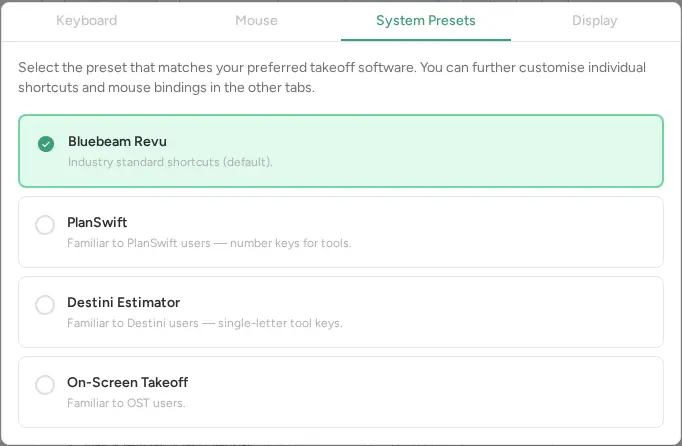
Open System Presets and pick the preset that matches the takeoff software you're used to. The button label then shows that preset's name.
Change a keyboard shortcut
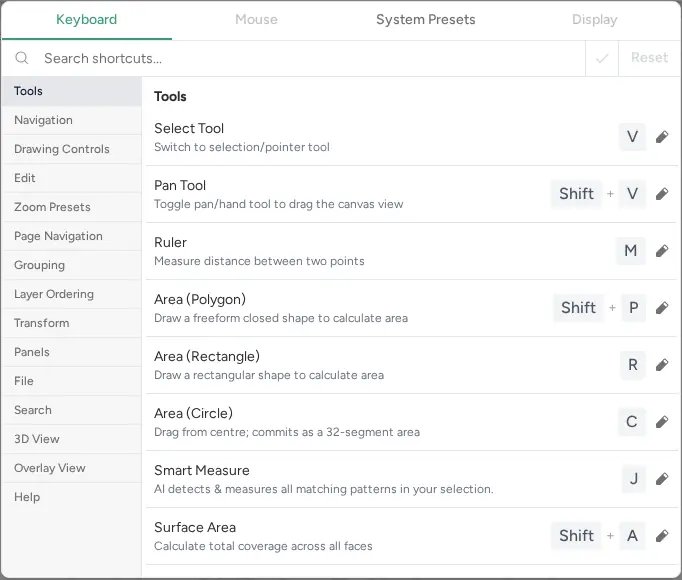
- Open the Keyboard tab. If no preset is selected yet, the other tabs are locked: pick one under System Presets first.
- Find the action with "Search shortcuts...".
- Click its shortcut and press the new key combination.
Change mouse buttons
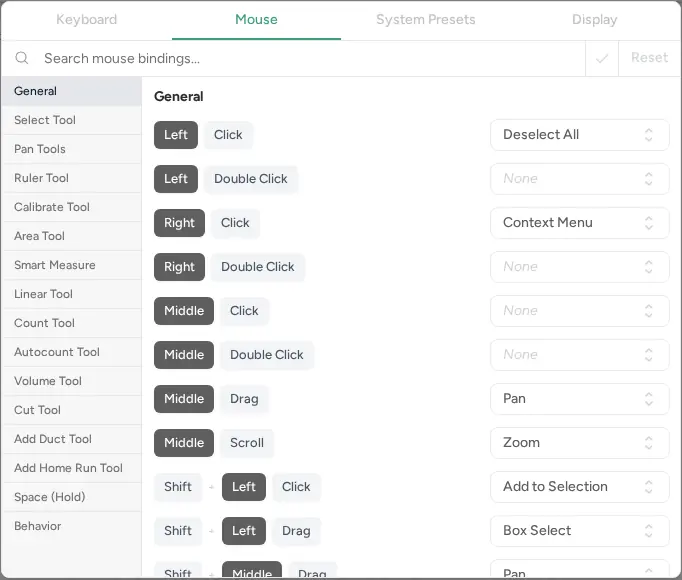
Open the Mouse tab and use "Search mouse bindings..." to find the action. Mouse-button bindings are set here, not just keys.
When a key is already taken
- Shortcut Conflict: the key is used by another action. Choose Reassign to move it, Keep Both, or Cancel Edit.
- Reserved Shortcut: the key is reserved ("Currently reserved for:" shows what by) and can't be reassigned. Pick a different key.
Reset to defaults
On the Keyboard or Mouse tab, click Reset. Boon asks "Reset all shortcuts?" or "Reset all mouse bindings?" before resetting.