 learn
learnSetting and Calibrating Drawing Scale
Quick path
- Set scale
- Page Scale
- Standard
- Apply
- Set scale
- Page Scale
- Calibration
- Start calibration
- Custom
- Apply
Every page needs a scale before lengths and areas can be measured. The scale control sits on the takeoff canvas, not in project settings.
Where the scale control is
On the takeoff canvas, look for the scale chip. It shows the current scale, or one of these:
- Set scale (amber): the page has no scale yet.
- NTS: the drawing is marked Not To Scale.
- N/A: the page doesn't need a scale.
Click the chip to open the Page Scale dialog.

Pick a standard scale
- Click the scale chip to open Page Scale.
- Stay on the Standard tab and open the scale dropdown. Your organization's saved scales are listed first, then the Architectural, Engineering and Metric presets.
- Pick a scale and click Apply.
Enter a custom scale
- In Page Scale, open the Custom tab.
- Enter the drawing inches and the real-world feet and inches it represents.
- To reuse it on other pages, tick Save to org and give it a label. It then appears under saved scales on the Standard tab.
- Click Apply.
Calibrate from a known dimension
Use this when the printed scale is wrong or missing.
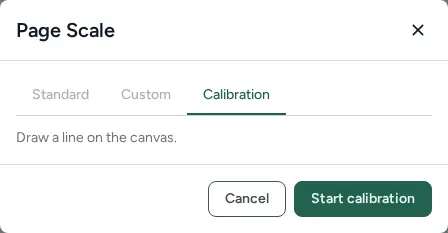
- In Page Scale, open the Calibration tab ("Draw a line on the canvas.").
- Click Start calibration. The dialog hides.
- Click-drag (or click twice) along a dimension you know on the drawing. Hold Shift to snap to 15° steps.
- The dialog reopens on the Custom tab with the drawing length filled in. Enter the real length and click Apply.
A drag that is almost zero length is ignored and the dialog simply comes back, so draw again. The Calibration tab only appears when you open the dialog for the page currently on the canvas.
Verify the scale with the ruler
- Select the Ruler tool on a page that already has a scale.
- Draw at least one ruler line over a known dimension.
- Click Verify Scale. A check badge appears next to the scale chip.
If you change the scale later, the badge shows the scale changed since verification. Right-click the badge and choose Clear Verification to remove it.
Running a takeoff on pages with no scale
If you start a takeoff on pages that have no scale, Boon opens Set scale before takeoff. Pick a scale for each page and click Save & Run Takeoff, or click Skip & Run Takeoff to run without one. Lengths and areas on pages without a scale show "—" until a scale is set.
Measuring without a scale
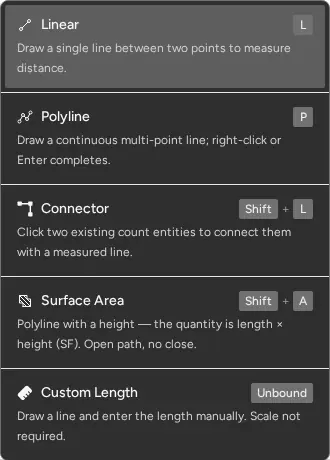
The Custom Length tool lets you draw a line and type its length by hand. No scale is needed.
Original takeoff experience
In the original takeoff the scale button reads "Set Scale" until a scale is set. Its dialog has the same Standard, Custom and Calibration tabs; the buttons are Start (calibration) and Save instead of Start calibration and Apply, and a short calibration line warns "Calibration line is short and may impact accuracy."