 learn
learnFixing a Sheet's Title, Number, Scale or Revision
Quick path
- AI
- Refine page info
- Draw box
- Apply
Boon reads each sheet's title, code / page number, scale, revision and sheet number from the title block. When it reads one wrong or misses it, you can show it where to look, or type the value yourself.
Ask the AI to re-read a value (newer takeoff)
- Open the sheet in the takeoff workspace.
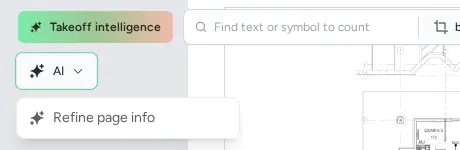
- Open the AI menu (sparkles icon) at the top of the canvas and choose Refine page info.
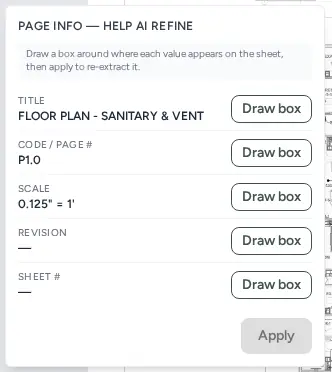
- The panel lists Title, Code / Page #, Scale, Revision and Sheet #. A missing title, code or scale shows "— not detected" and a "1 missing" pill.
- Click Draw box next to a value and drag a box around where it appears on the sheet. The row shows "Box drawn"; use Redraw to try again.
- Choose All pages in this document or Only this page, then click Apply. Boon re-extracts the values from the boxes you drew.
The AI menu can also hold ductwork and piping review actions, so Refine page info is one entry among several.
Type the revision or sheet number yourself
In the drawing info bar above the canvas, click Revision or Sheet # and type the value. The page title can be edited the same way by clicking it.
Original takeoff
The original takeoff experience has no Refine page info control.