learn
learnShowing, Hiding and Grouping Measurements (Layers)
Quick path
- Toggle Takeoff Table
- Filter
- Trade
- Toggle Takeoff Table
- Group by
- Add a group
Boon has no layers panel and does not toggle the PDF's own CAD layers. What people usually mean by "layers" is done in the takeoff table: hide or show measurements, filter them by trade or user, and group them.
Open the takeoff table
On the right rail, click Takeoff (tooltip "Toggle Takeoff Table"). Each row is a measurement or a group of measurements.
Hide or show measurements
Each row has an eye icon:
- On a single measurement: Hide annotation / Show annotation.
- On a group: Hide group annotations hides every measurement in it.
- In the table header: Hide all annotations / Show all annotations.
Hidden measurements disappear from the drawing but are not deleted.
Filter by trade, user, or status
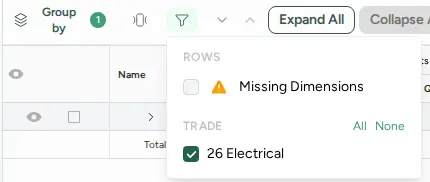
Click Filter (funnel icon) in the takeoff table.
- Rows: show only Missing Dimensions or Needs Review rows.
- Trade: tick the trades to show. Use All / None to switch quickly.
- Users: show only measurements made by certain people, or Only Me.
Trade and user filters hide measurements on the drawing as well as in the table.
Group the table
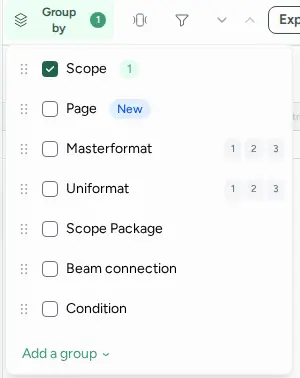
Click Group by to choose how rows are grouped, for example by Scope, Page, Masterformat or Uniformat, Condition, or Scope Package. Use Add a group to group by room name, level, or one of your own columns.
Add more measurements to an existing group
On a group row, click the arrow button (tooltip "Add measurement to this group"), then draw on the drawing. New measurements join that group. If the button is greyed out with "This group is managed automatically.", the group was created by Boon's AI takeoff and its membership can't be edited by hand.
Show or hide table columns
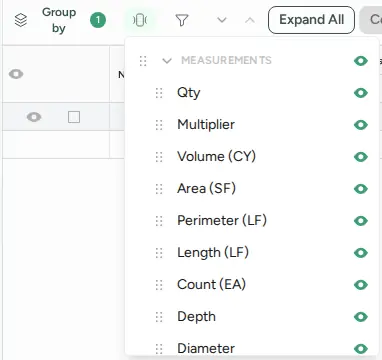
Click Columns in the takeoff table to choose which columns appear and drag them into a different order.