 learn
learnUploading a Whole Folder of Drawings
Quick path
- Add
- Upload Folder
You can upload a folder, including its subfolders, in one go. Boon recreates the folder structure in the project for every subfolder that contains an uploaded file. Empty subfolders, or ones whose files were all skipped, are not created.
Upload a folder
- Open the project's Files section and select the destination folder.
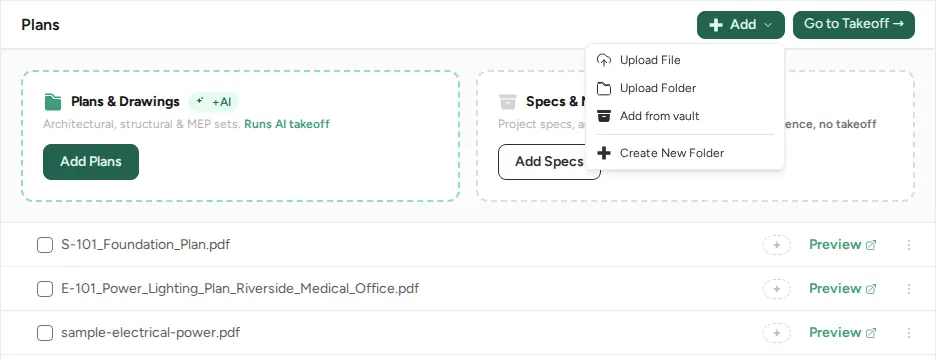
- Click Add and choose Upload Folder (Upload File picks individual files instead).
- Choose the folder in your browser's folder picker.
Each folder's own action menu also has Upload File and Upload Folder, which upload straight into that folder.
What gets skipped
- Hidden and system files inside the folder are skipped automatically.
- If nothing uploadable is left, Boon says "No uploadable files found in this folder" instead of uploading nothing.
- Into Plans, only PDF and OSP files are accepted; other files are skipped with a warning saying how many.
Other ways to add files
The same Add menu has Add from vault (pick a file from your vault) and Create New Folder.