 learn
learnPlans vs Specs — Which Folder to Upload To
Quick path
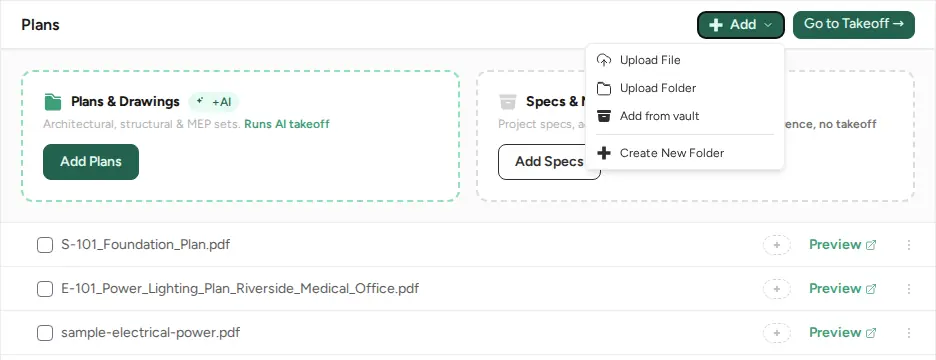
- Add
- Upload File
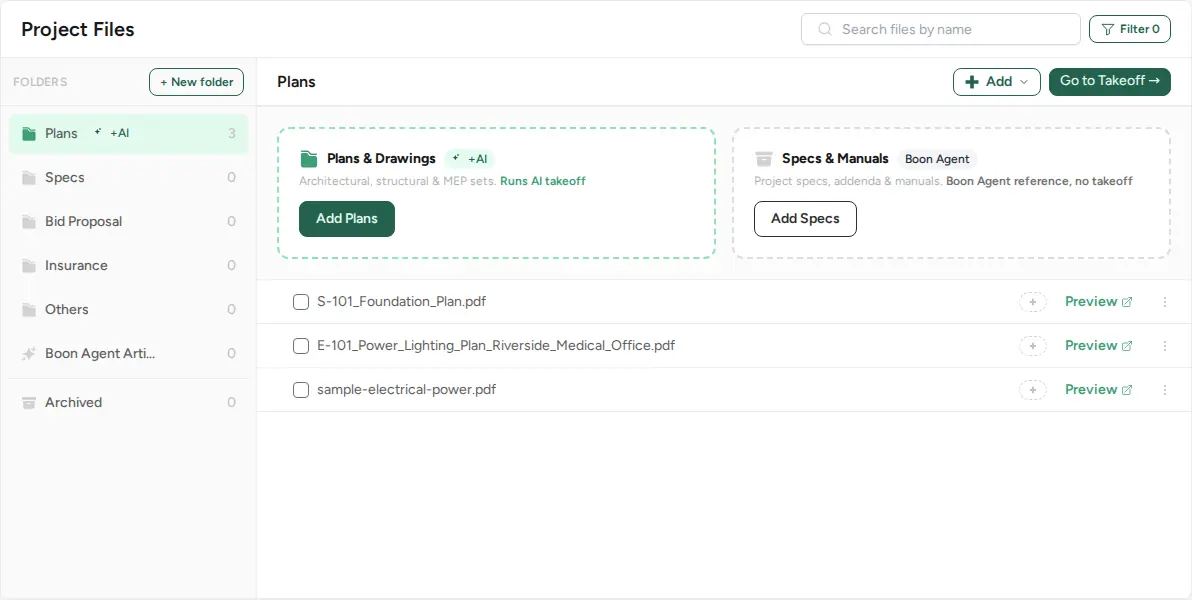
Every project starts with folders: Plans, Specs, Bid Proposal, Insurance, Others, Boon Agent Artifacts and Archived. The folder decides what Boon does with a file. There is no document-type picker on upload.
Plans: drawings for takeoff
Upload drawing sets to Plans (or a subfolder of it). Plans carries an AI badge: "Drawings added here run OCR, sheet detection, and takeoff extraction automatically." Boon splits the set into sheets, reads each title block and classifies sheets (plan, elevation, section, detail, schedule).
Plans only accepts PDF or OSP files. When you add several files or a folder, the other files are skipped with a warning ("N files were not PDF or OSP files and were skipped.") and the valid ones still upload.
Specs and other folders: stored only
Files in Specs, Bid Proposal, Insurance and Others are stored with the project but are not split into sheets or sent to takeoff. Put specification books here, not in Plans, so they don't show up as drawing pages.
Upload a file
- Open the project's Files section and select the folder.
- Click Add and choose Upload File or Upload Folder.
- When drawings are in Plans, click Go to Takeoff →. Until then the button is disabled with "Upload plans to start a takeoff".
Wrong folder?
A specification uploaded to Plans becomes drawing pages in takeoff. Archive those pages in takeoff and upload the file to Specs instead.