 learn
learnAddenda, Revised Sheets and Comparing Revisions
Quick path
- Overlay
- Select Page to Overlay
- Diff
Boon has no special addendum upload and doesn't mark old sheets as superseded. Upload the addendum as new drawings, compare against the old sheets, then archive what's been replaced.
Upload an addendum
- Open the project's Files section and select the Plans folder (or a subfolder, for example one named for the addendum).
- Click Add and choose Upload File or Upload Folder.
The new sheets appear in takeoff next to the originals.
Record the revision on a sheet
In the newer takeoff, the drawing info bar above the canvas has a Revision field. Click it and type the revision. Boon may also read it from the title block.
Compare an old and new sheet (Overlay)
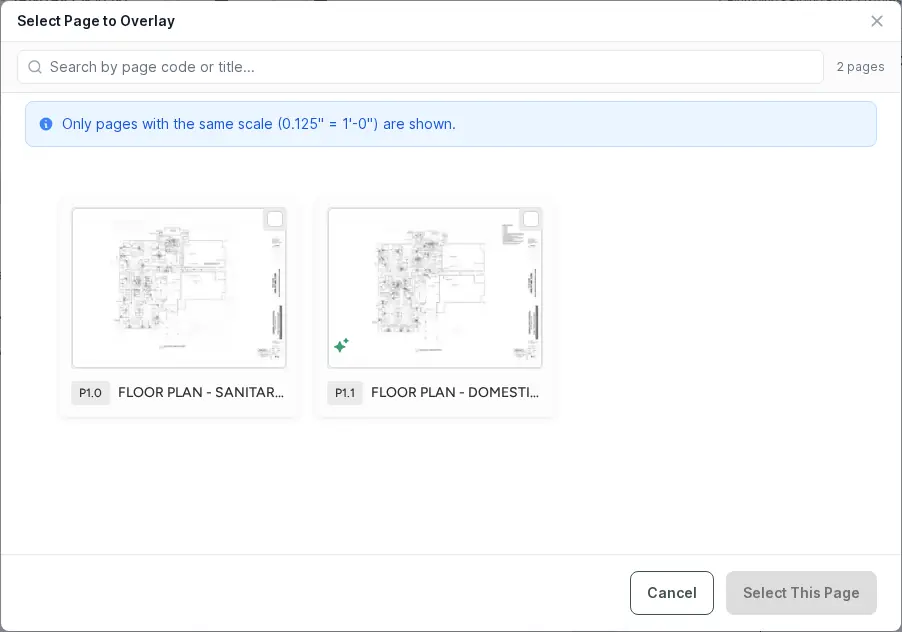
- Set the scale on both sheets. Overlay only lists pages with a matching scale ("Calibrate scale on the current page first to enable overlay.").
- Open the newer sheet and click Overlay on the right rail ("Enter Overlay Mode").
- In Select Page to Overlay, pick the older sheet.
- Choose Blend to see both, or Diff to highlight what was removed, added or modified. Switch views with the base page, overlay page, or Both (keys 1, 2, 3).
- Click Remove overlay when done.
Run Takeoff on Overlay runs the AI takeoff on the overlaid sheet.
Retire replaced sheets
Select the old pages in takeoff and click Archive. Boon asks "Archive this page?" (or "Archive N pages?") and warns if measurements on them will stop counting in the estimate. Archived pages can be brought back with Recover.