 learn
learnExporting to Trimble AccuBid and Other Estimating Software
Quick path
- Integrations
- Supplier Link
- Export XML
- Export
- Export Estimate
- Current View
Boon does not push estimates straight into Trimble AccuBid. You export a file from Boon and import it in your estimating software.
Export a SupplierLink XML for AccuBid
- Open the estimate.
- Click Integrations in the grid toolbar.
- Choose Supplier Link > Export XML.
The file is in AccuBid Pro SupplierLink XML format, for electrical supplier quoting. A toast reports how many items were exported and how many are missing supplier data. Import XML on the same menu brings a returned SupplierLink file back into Boon.
Other estimating-software exports
From Integrations:
- PlanSwift > Export CSV.
- fastEST > Export Excel.
Spreadsheet, CSV and PDF exports
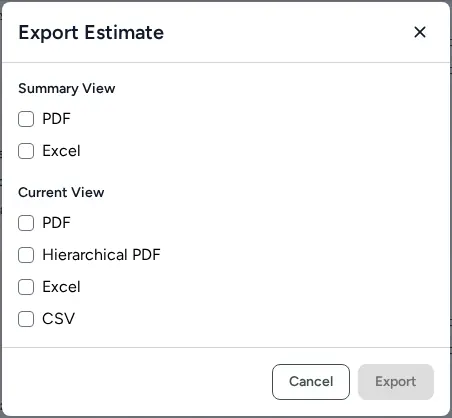
- Click Export in the estimate grid toolbar. Export Estimate opens.
- Under Summary View or Current View, tick the formats you want (PDF, Excel, CSV, and others). Current View exports the grid as you've filtered and grouped it.
- Mechanical estimates also offer Autobid Sheet Metal Report under Conditional.
- Click Export. Several files download together as a ZIP.
Sheet metal to Trimble AutoBid / FabShop
When you export from takeoff and the takeoff includes ductwork, the download
ZIP also contains a Trimble FabShop/AutoBid .import file. In the takeoff
export, tick Takeoff data (Excel/CSV) (alone or with Annotated PDF);
the .import file is added for you. An Annotated PDF-only export has no
.import file.
Map your own cost codes
- In the Library, each cost item has an Accounting Code per cost type (material, labor, equipment, other).
- In the estimate, show the Account Code columns (with Edit columns) to see or override the code on a line. A code on the line wins over the item's code.
To send the codes to your estimating software, show the Account Code columns, then export Current View as Excel or CSV and map that column in your software's importer.
AccuBid Anywhere connection (Boon Agent)
Organization admins can connect AccuBid Anywhere on the Integrations page, Organization tab (dialog "AccuBid Anywhere (organization)"). This lets the Boon Agent read your AccuBid Anywhere data, such as projects, estimates and bills of material. It does not write anything into AccuBid.