 learn
learnHow Assemblies Are Priced in an Estimate
Quick path
- Assemblies
- Add to Estimate
- Reconfigure Assembly
- Save changes
An assembly is a bundle of component items. In the estimate, the assembly row is a container: its cost is the total of its component rows, and each component is priced like any other item.
How the assembly cost is built
- Each component row has its own quantity, unit cost and extended cost.
- The assembly row shows those values rolled up.
- To change the assembly's cost, change a component's price or quantity, or reconfigure the assembly's options.
Add an assembly to an estimate
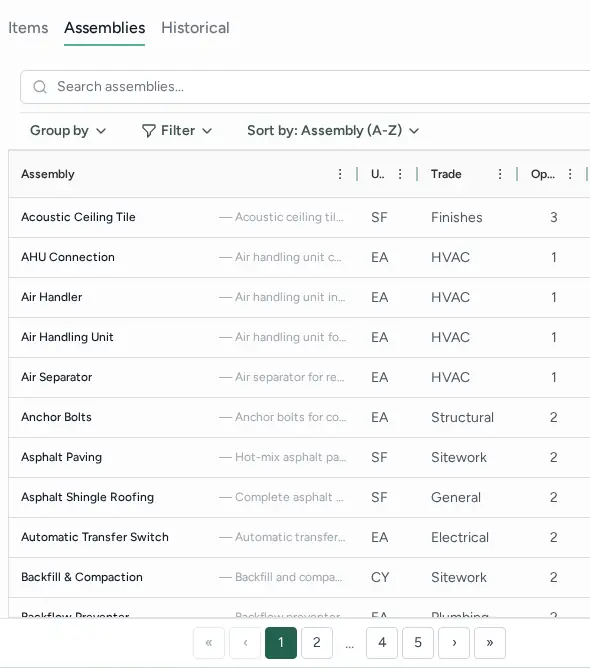
- On the right rail, click Assemblies (tooltip "Show Assembly catalog").
- Pick an assembly. Its configuration panel opens and lists the Components it will add.
- Set the quantity and options, then click Add to Estimate.
Change an assembly that's already in the estimate
Right-click the assembly row or one of its components:
- Reconfigure Assembly (or Configure Assembly if it still needs setup): change options, then Save changes. Tick Apply to matching instances to update the same assembly elsewhere in the estimate.
- Change Assembly: swap it for a different assembly.
- Duplicate Assembly / Delete Assembly.
Hovering the assembly's group row also shows icons for "Edit assembly variables" and "Replace assembly".
Create or edit assemblies for reuse
Assemblies are defined in the Library, which has Cost Items, Assemblies and Vendors tabs. Open Assemblies there to create one and list its required items and the formulas that set each item's quantity and price.