 learn
learnAdding Items to an Estimate (Including Under a Building or Group)
Quick path
- Add
- Add catalog items
- Add item
- Add child item
- Items
- Add item
Items are added from the Add menu in the estimate toolbar, or by right-clicking an existing row. There is no "+ Add item" button on individual rows or group headers.
Add catalog items
- Click Add in the estimate toolbar and choose Add catalog items.
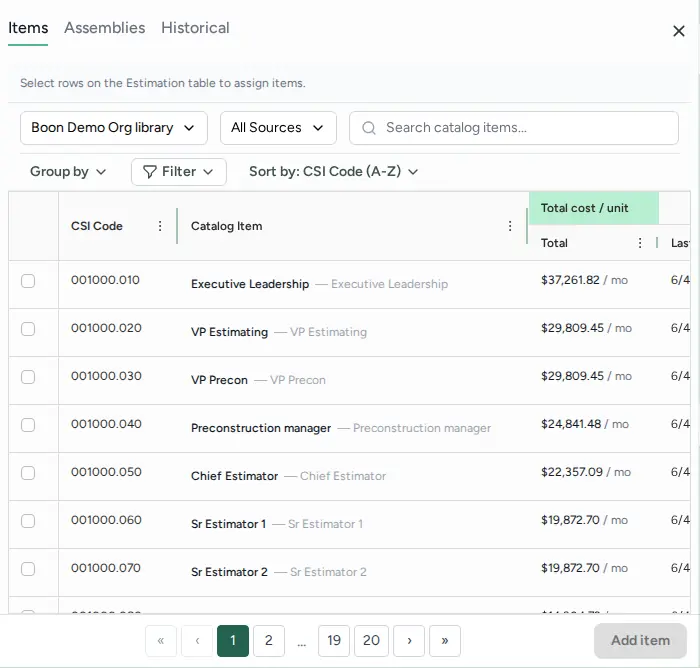
- Find items in the catalog and tick them.
- Click the footer button (Add item until you select something, then "Add 1 item" / "Add N items").
Items added this way go to the top level of the estimate with quantity 1. An empty estimate offers the same choice: "Select the type of line item you want to add", then Select catalog item or Use conceptual quantity.

Add an item under a takeoff row
Use this to price something that belongs to a measured takeoff item, for example extra material for a wall type.
- Right-click the takeoff row.
- Choose Add child item.
- The catalog panel opens with Items, Assemblies and Historical tabs. Pick what you need and click the footer button (Add item).
Child items take the parent's quantity and unit, so they move with the takeoff. The same menu has Add conceptual qty and Select all children.
Add items for a building (or any known quantity)
If you know a building's quantity (for example "Building A — 50,000 SF") without measuring it:
- Click Add > Add known conceptual qty and enter the quantity.
- Right-click that row and choose Add linked item(s) (Shift+I), or click the small Add button on the row (tooltip "Add linked items").
- Pick the items. Their quantities reference the building's measurement and are scaled by each item's coverage ratio, so 50,000 SF does not mean 50,000 units of every linked material.
Group the estimate by building, floor or phase
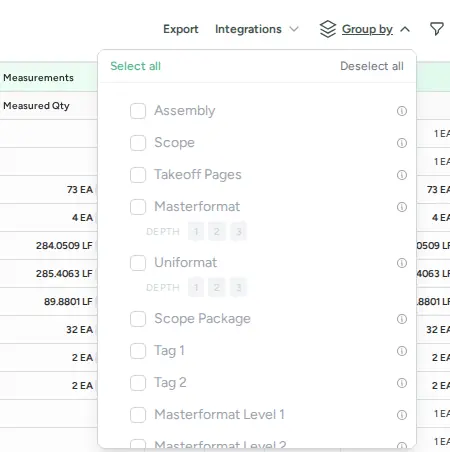
Grouping is a view, not a place to add items.
- Click the grouping control ("Toggle grouping options") to group by scope, takeoff pages, MasterFormat, UniFormat, tags or WBS properties.
- If your account has WBS Properties turned on, create a property such as Building with values A, B, C, then set each line's value in the WBS Properties columns. Rows without a value appear under "(Unassigned)".
To put a new item in the "Building A" group, add it (any method above) and set its WBS value or tag to Building A.
Other row actions
Right-click any row for Duplicate row, Delete row, Replace Item..., and Bulk Change (for several selected rows).